Setup Guide
Follow this guide to install Neo Video Server, share your folders, and connect your phone or TV. Once setup is complete, your files stay on your computer while you watch videos and browse photos on those devices.
1.Install the server
Download Neo Video Server
Download Neo Video Server from https://dl.starlabok.com/neovideo/NeoVideoServer_mac.dmg. When the download finishes, open the file.
Move it to Applications
In the window that opens, drag “Neo Video Server” onto “Applications”. Wait for it to finish copying, then close the window.
Start it from Applications
Open Finder, choose “Applications” in the sidebar, and double-click “Neo Video Server”. When its icon appears in the menu bar, the server is running. To have it start with your Mac, turn on “Start at login” in the server settings. To stop it, click the menu bar icon and choose “Quit”.
When your firewall asksThe first time you start the server, macOS may ask whether the app may accept incoming network connections. Click Allow so your other devices can connect.
If you previously clicked Deny, open System Settings > Network > Firewall and allow Neo Video Server.
Install Neo Video Server from the Microsoft Store
Open the Microsoft Store listing and click Install.

Start it
Launch “Neo Video Server” from the Start menu. When its icon appears in the system tray near the clock, the server is running. It will then start automatically whenever Windows starts.
When your firewall asksIf Windows Firewall asks for permission, select “Private networks” and click “Allow access”. Your other devices need this permission to connect to the server. If you previously clicked Cancel, search Windows for “Allow an app through firewall” and enable Neo Video Server.
Install Neo Video Server
Run the following command in a terminal. It installs the correct server build for your system.
curl -fsSL https://neovideo.starlabok.com/install.sh | shInstall ffmpeg
Thumbnails, video metadata and MKV/AVI remuxing need ffmpeg.
sudo apt install ffmpeg # or your distro's equivalentStart it
The server starts in the background and prints “neovideo-server started”. Use neovideo-server stop / restart / update / uninstall to manage it.
neovideo-server
2.Share your folders
Open the settings page
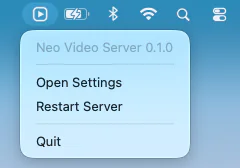
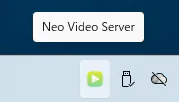
Click the Neo Video icon in the menu bar on Mac or the system tray on Windows, then choose “Open Settings”. If you can't find the icon, you can also reach the same settings page by entering http://127.0.0.1:9799 in a browser on the computer running the server. The settings page opens in your browser but is served from your own computer; it is not a public website.
Add a folder
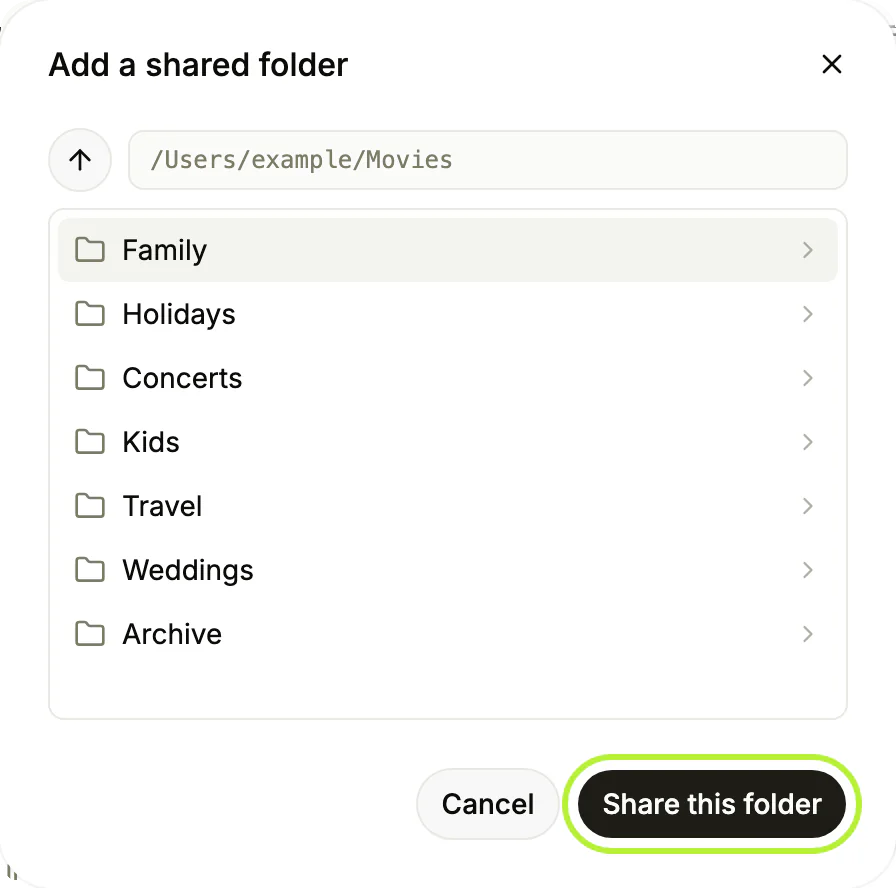
Click “Add folder” to open the folder browser. Click a folder name to move into it; if you go too far, the “↑” button at the top left takes you back one level. Once you reach the folder holding your videos or photos, press “Share this folder”. It does not matter whether any subfolders are listed. Your Movies folder and external drives both work. Each folder you add appears as a library in Neo Video.
3.Connect your devices
Install Neo Video on your viewing device
Use the App Store for iPhone, iPad, and Apple TV, or Google Play for Android phones, tablets, and Android TV.


Open Neo Video
Make sure the device and server computer are on the same home network. The server should appear under “On This Network”. Tap it, or select it with the TV remote, to connect.
If the server doesn't appearChoose “Add Server” in the app and enter the “Address” and “Port” shown on the settings page, for example 192.168.0.3 and 9777.
A manual connection can work even when the network blocks automatic discovery.
Open a folder and play
After connecting, your shared folders appear in the app. Open a folder and choose a video to start playback.
Folder access on a MacThe first time you open a shared folder, macOS may ask for permission to access it. If the folder stays empty for a while, check the server Mac. If the dialog is waiting there, click Allow.
If you previously clicked Deny, open System Settings > Privacy & Security > Files & Folders, allow Neo Video Server, and restart the server.